
Contents
You install Antigravity, sign in with your Google account, and up pops this:
“Your current account is not eligible for Antigravity, because it is not currently available in your location.”
Most people’s first instinct is to switch proxy nodes. They cycle through a bunch and still get the same message.
The problem usually isn’t your IP. It’s the account itself.
Every Google account has an “associated region”
Each Google account is tied to a country or region. That decides three things: which Google company provides your service, which version of the terms of service applies to you, and which local laws your account follows.
This region has nothing to do with your current IP. A new account gets the place where it was created. An account older than a year gets the place where you’ve used Google services most over the past year. So even if you switch to a US node today, your account’s region won’t change with it.
Antigravity’s official FAQ is clear about this: if the region is wrong, check it on the terms of service page, and if it’s wrong there, submit a change request.
Step 1: Find out where you’ve been assigned
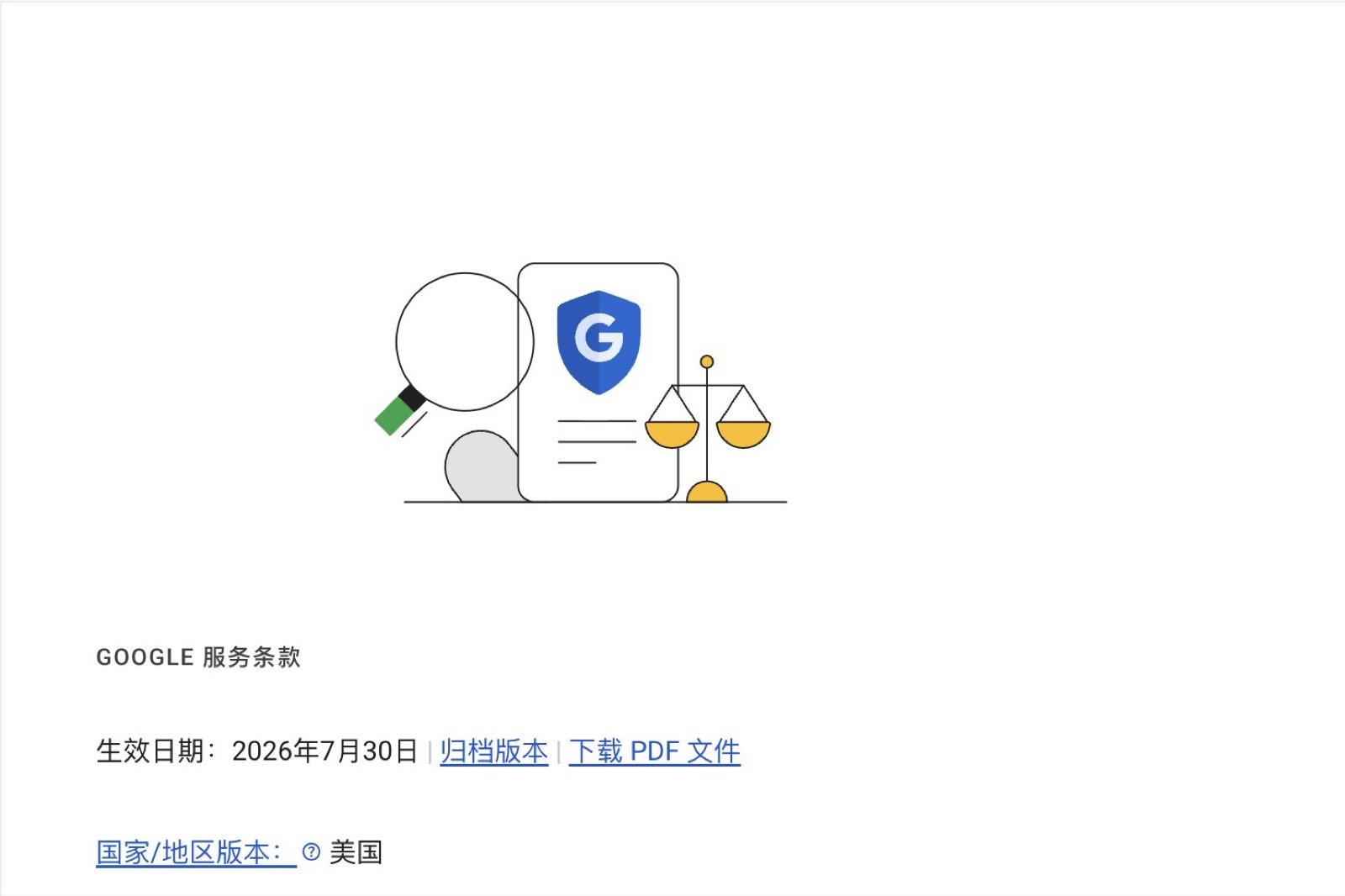
Open policies.google.com/terms, sign in, then scroll to the very bottom of the page.
What it says after “Country version” is your account’s associated region.
Mine currently says “United States”, with terms effective July 30, 2026.
If it says China here, Antigravity won’t work. Google says it’s available in 224 countries and regions, and mainland China isn’t one of them.
Step 2: Submit a change request
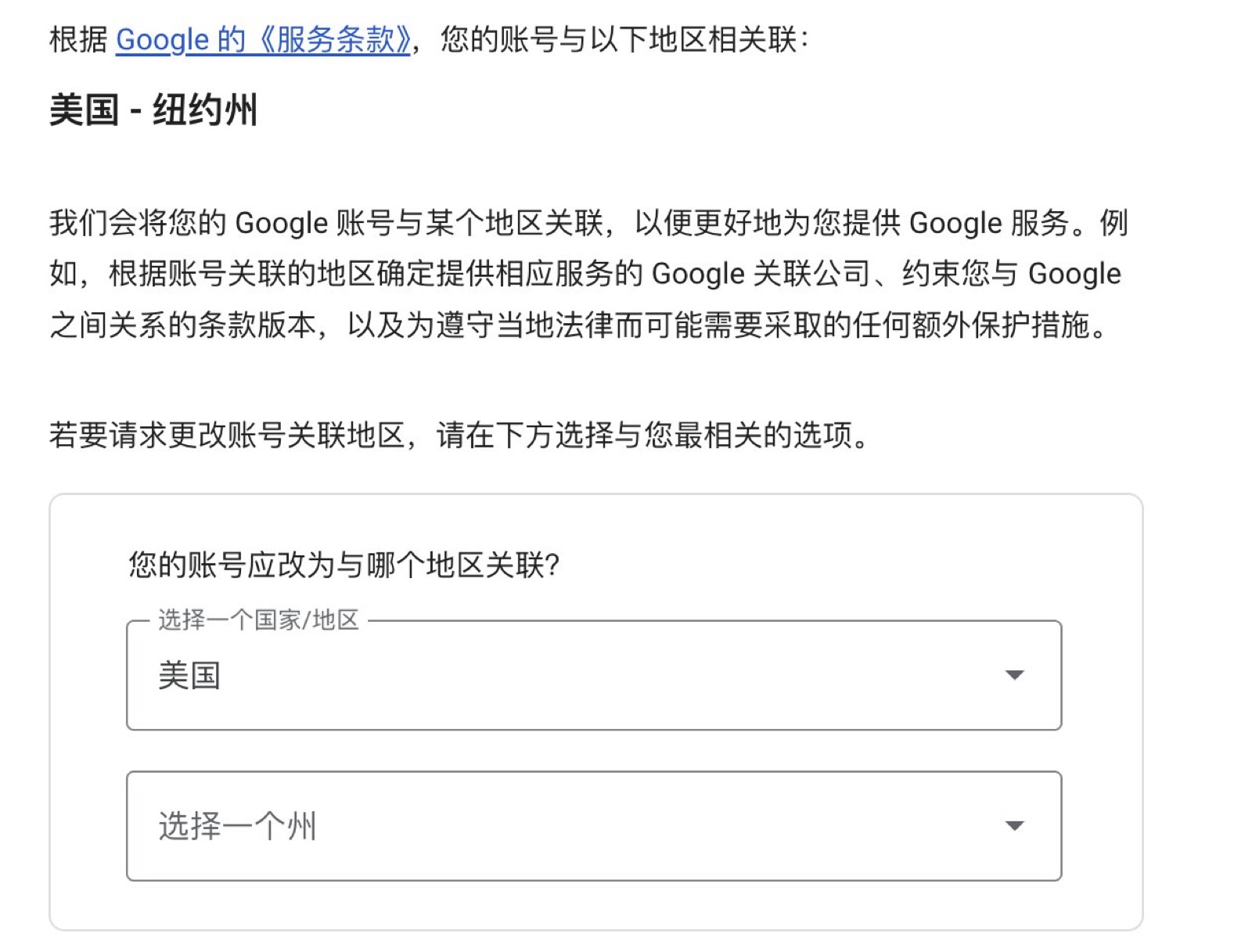
The form is at policies.google.com/country-association-form.
The page first shows the account you’re signed in with and its current region. Below are two dropdowns: pick a country first, and for the US, a state as well.
The form literally says “choose the option most relevant to you”. In other words, you should pick where you actually live or work. If you’re in Japan, pick Japan; if you’re in Singapore, pick Singapore. Those regions support Antigravity themselves, so there’s no need to force the US.
Step 3: Wait for the email
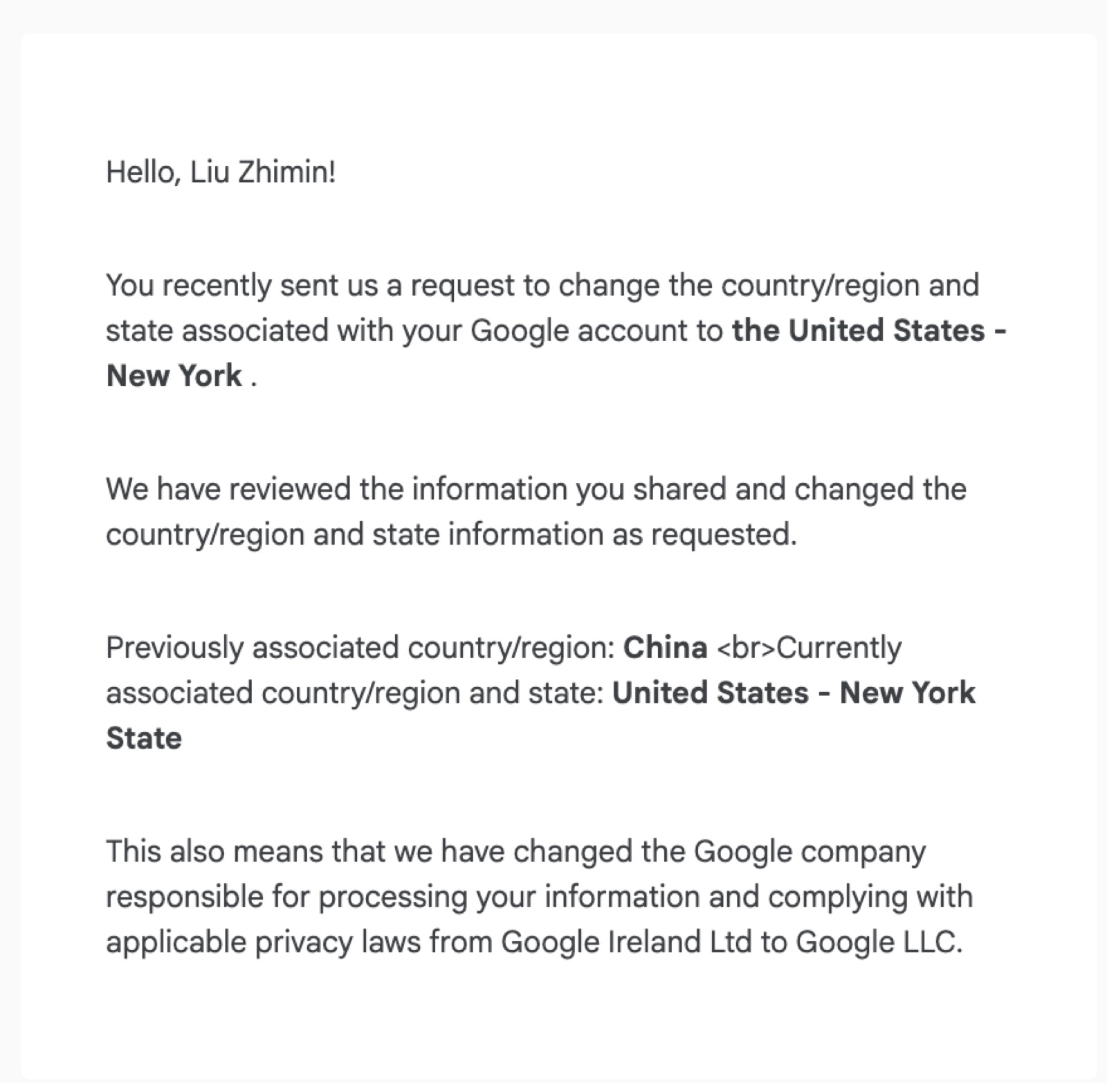
Once it’s approved you’ll get an email in English that roughly says: we’ve changed your associated region as requested.
There’s one line in it that’s easy to miss: the company that processes your data and is responsible under privacy law changes from Google Ireland Ltd to Google LLC.
In other words, you’re not just changing a dropdown; the legal entity your account falls under changes too.
Still can’t get in? Check these two things
First, your proxy. A reply on Google’s official forum mentions that if your account region doesn’t match where your current IP is, or your IP is flagged as an anonymous proxy, you can still be blocked.
You’ll also need to turn on the virtual network adapter (TUN mode).
Second, your sign-in state. After changing the region, sign out of Antigravity and sign in again so it fetches your account info fresh.
Also, Antigravity isn’t available to anyone under 18, and company-managed Workspace accounts may have the feature turned off by an admin. Changing the region won’t help in either case.
And when you sign in, you might trigger a security check that shows a QR code. Just scan it to verify; the iPhone’s built-in Camera app works fine.
Then there’s the node
My node is self-hosted on DigitalOcean. I don’t use a commercial proxy service; my node is a VPS I set up myself on DigitalOcean.
The upside of self-hosting is that I’m the only one using the IP, so I won’t get blacklisted because someone else abused it, and I can troubleshoot problems myself. But cloud-provider IPs have one issue: they’re all in data-center ranges that Google spots easily, and AI services tend to be stricter with them.
So I split my node into two routes. One goes direct, for everyday browsing. The other exits through Cloudflare WARP and is reserved for Google and AI services, so they see a Cloudflare IP instead of a DigitalOcean data-center IP.
The protocol is Xray’s VLESS-Reality, with a Hysteria2 route as backup for when the network is bad. When I use Antigravity I stay on the WARP route and don’t hop between nodes. Keep your account region, IP location and sign-in environment consistent, and you’re much less likely to trip risk controls.
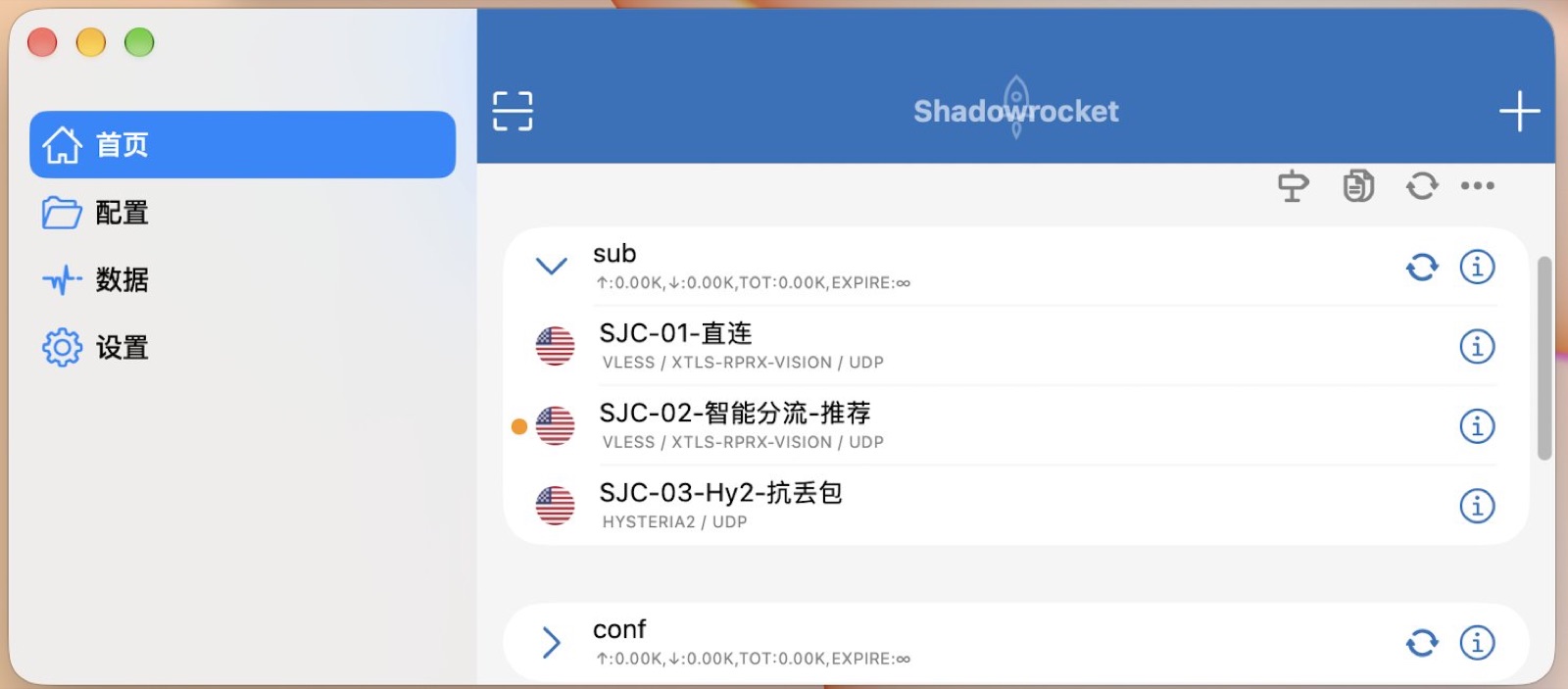
Because it’s self-hosted, I can use Claude safely too, and I haven’t been banned.
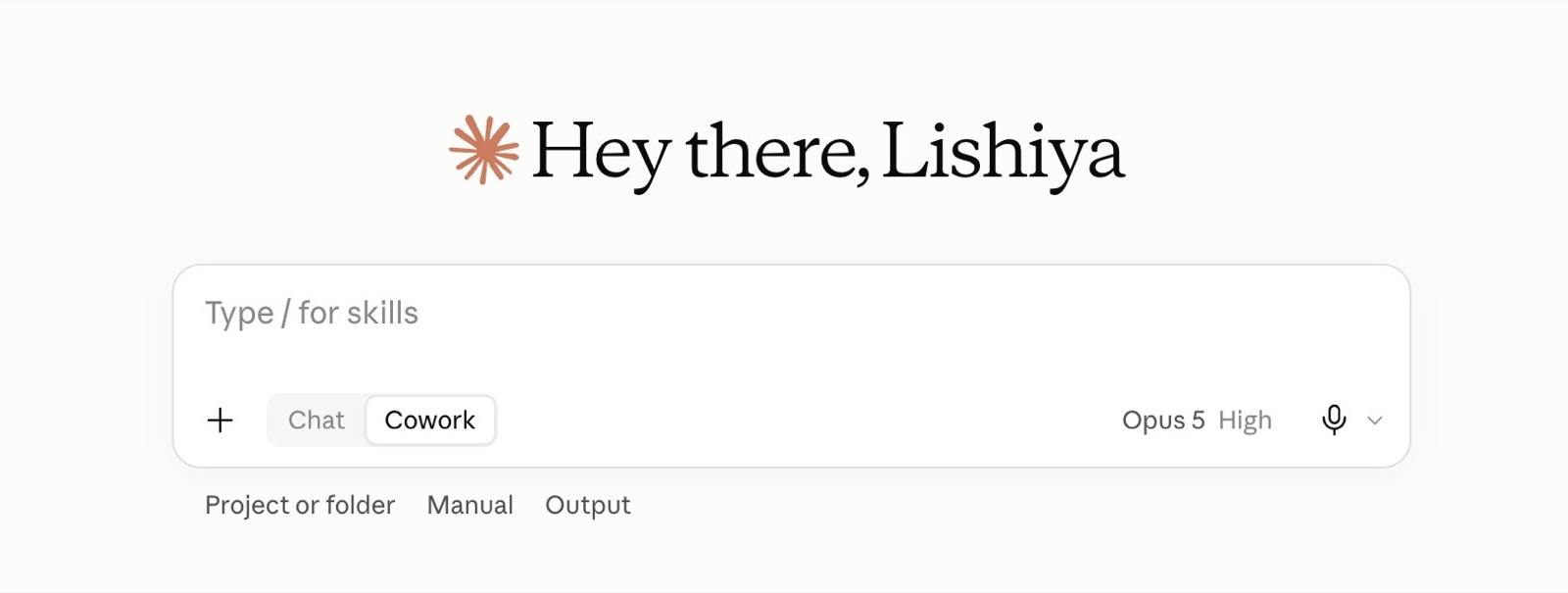
As for how to set it up? I turned it into a skill. Just send it to Claude, and Claude or Codex can set the whole thing up automatically; all you have to give it is the IP and password.
Which region does your account show right now?