
Contents
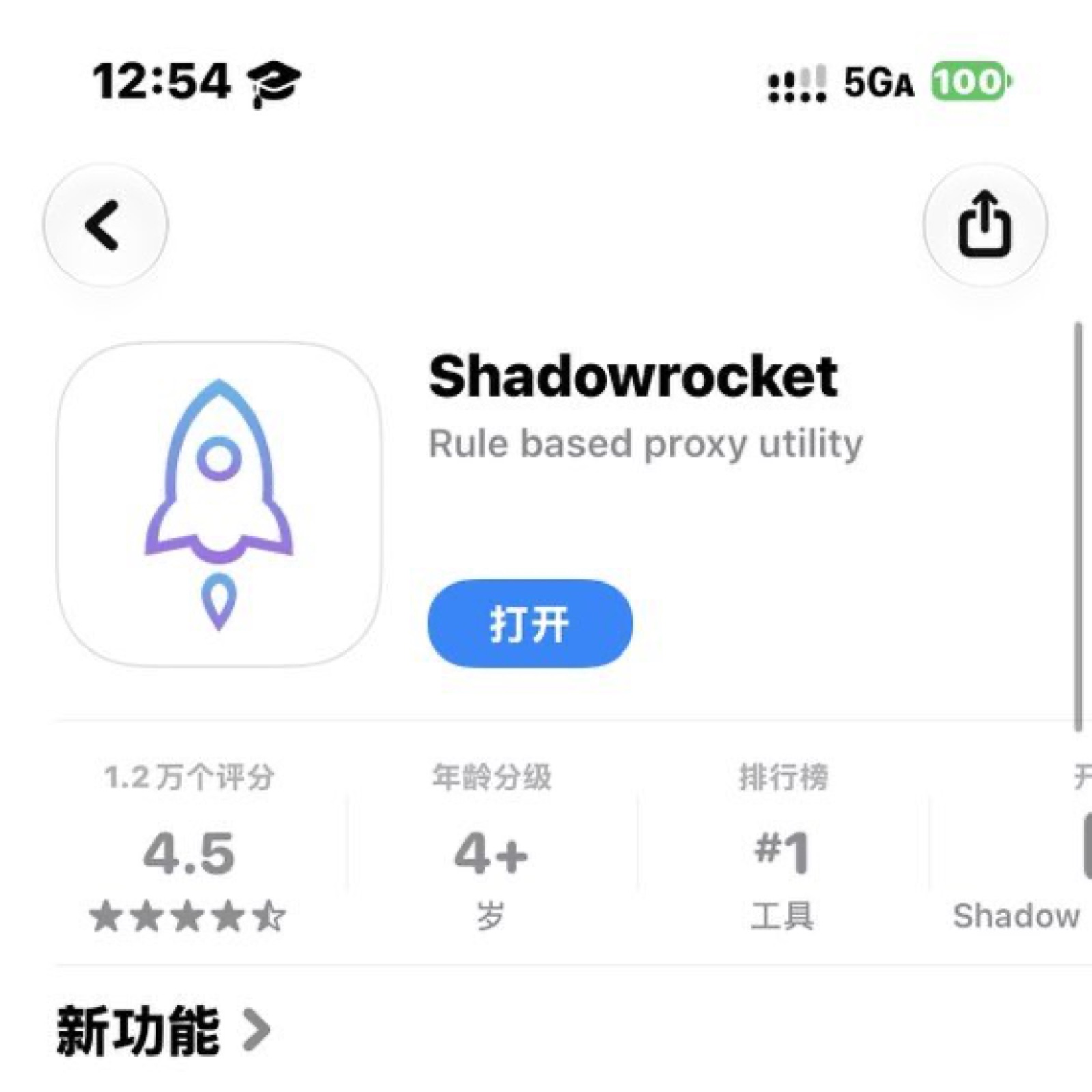
My answer to which proxy app to use on iPhone and Mac has always been Shadowrocket. It’s a one-time $2.99 purchase, and the same Apple ID installs it on iPhone, iPad and Mac. This post goes from buying it to importing nodes and a few common settings; follow along and you’ll be connected in ten minutes.
What is Shadowrocket
Shadowrocket is a rule-based proxy client. It doesn’t come with any nodes; you bring your own subscription link or nodes. It supports the common protocols, SS, VMess, VLESS, Trojan, Hysteria2, TUIC and WireGuard, and splits traffic automatically by rules: Chinese sites go direct, overseas sites go through the proxy.
You can find subscription links or nodes yourself, or ask in the replies and I’ll recommend a few. I’m leaving them out here to keep this short.
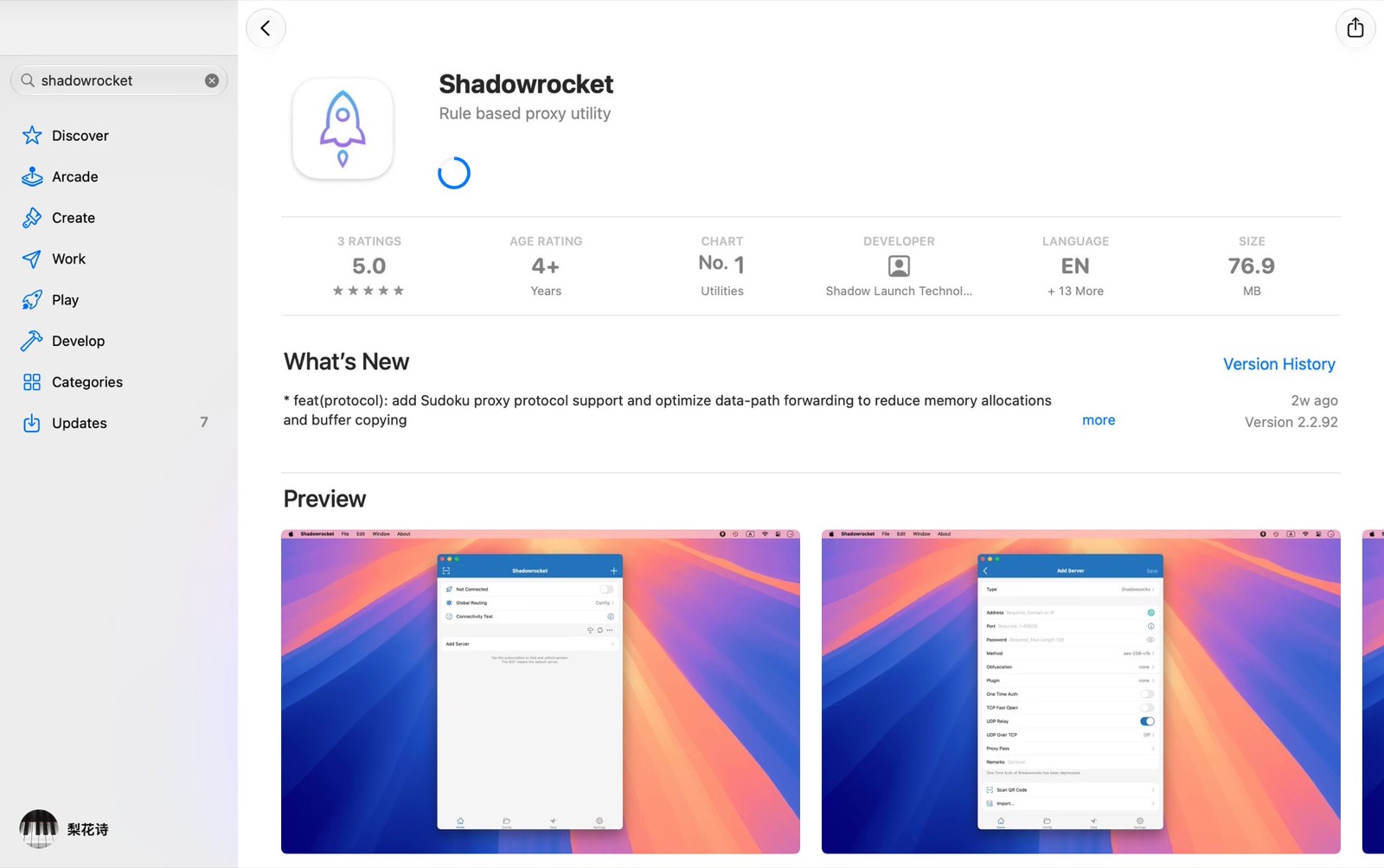
It’s currently #1 among paid Utilities in the US App Store; the latest version is 2.2.92 from September 7. The developer’s privacy label says it collects no data. This version also added a menu bar to the Mac app, so you can switch routing and nodes right from the menu bar.
Advanced users go for Quantumult X, Loon or Stash, but for beginners Shadowrocket is the least hassle. The experience on Mac and iOS is excellent.
Why can’t you find it in the China App Store?
Starting in 2017, Apple removed this kind of network tool from the China App Store one by one, Shadowrocket included. So you won’t find it with a China-region account; you need an Apple ID from another region to download it. It’s in the US and Hong Kong stores.
How to download it
Step 1: get an Apple ID from another region. Create one yourself, choose the United States as the region, and you can choose None for payment for now. Don’t use accounts shared online, and never sign in to one in your phone’s iCloud settings; the owner could change the password and lock your phone.
I’ve written a sign-up guide too.
Quoted post: https://x.com/i/status/2104513646818656401
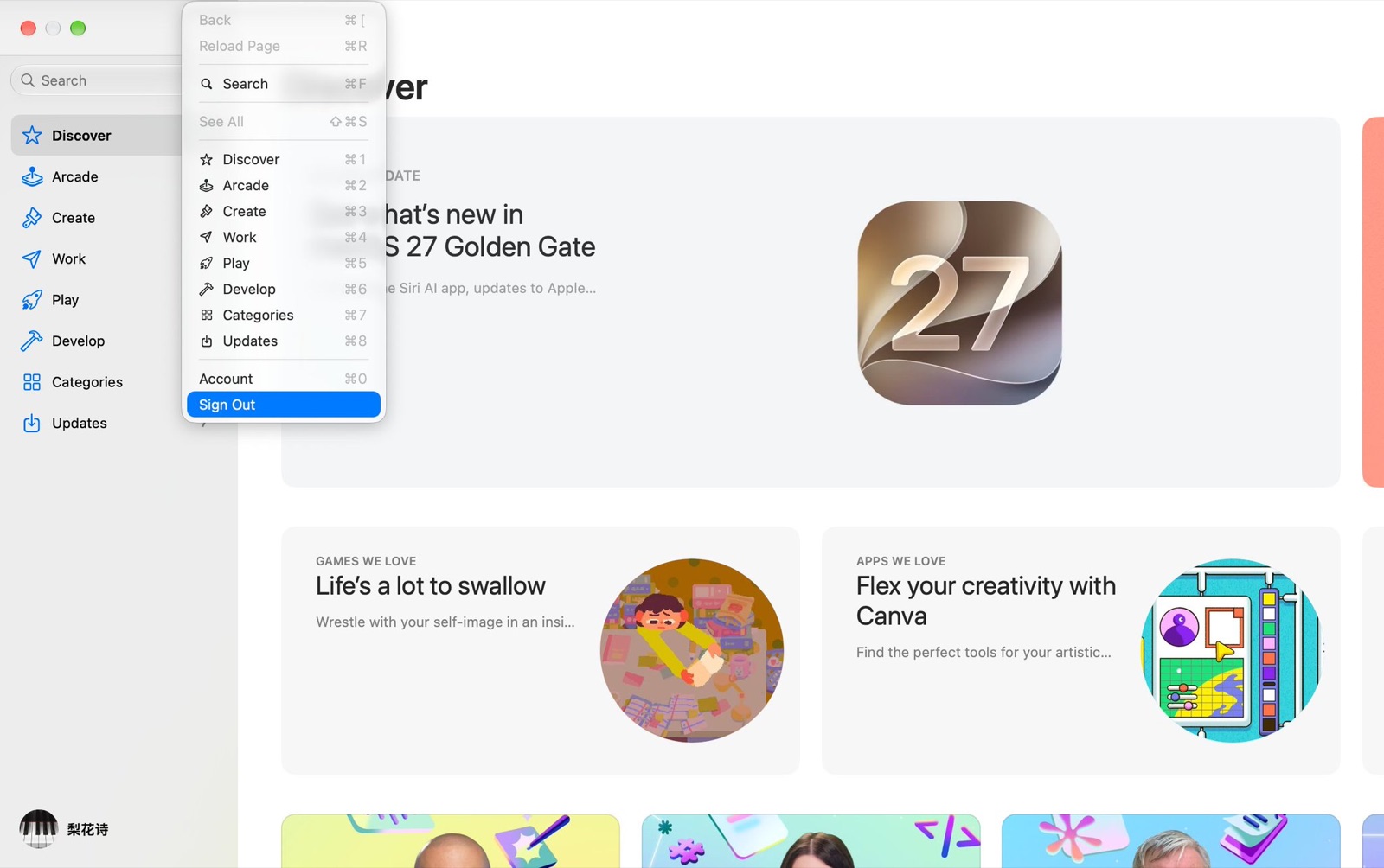
Step 2: switch accounts only in the App Store. Open the App Store, tap your avatar at the top right, scroll to the bottom, sign out, then sign in with the overseas account. Leave the Apple ID in your phone’s Settings alone.
Step 3: add funds, then buy. For a US account, top up with an App Store gift card, then search for Shadowrocket. Make sure the developer is Shadow Launch Technology Limited. It’s $2.99, plus a little tax depending on your billing address.
Since I already bought it, I’ll skip the payment process.
Step 4: after buying, you can switch back to your own account. The installed Shadowrocket keeps working; updates will just ask for the overseas account’s password.
How to install on a Mac?
You don’t need to buy it again for the Mac. Sign in to the Mac App Store with the same overseas Apple ID, search for Shadowrocket, and since you’ve already bought it you’ll see the download icon right away. It officially requires macOS 10.15 or later.
With Family Sharing on, up to 6 family members can use it: one purchase covers the whole family.
How to use it
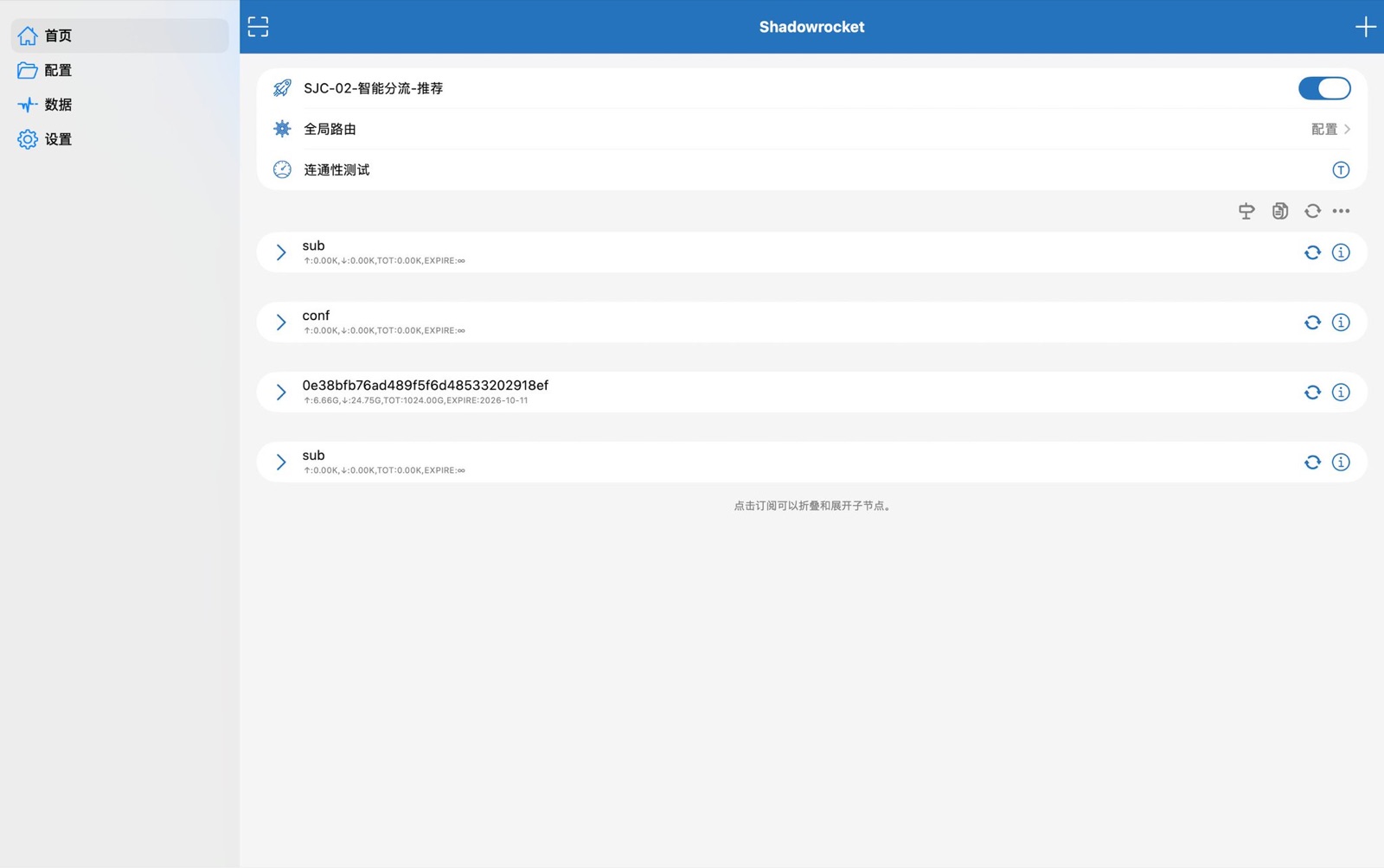
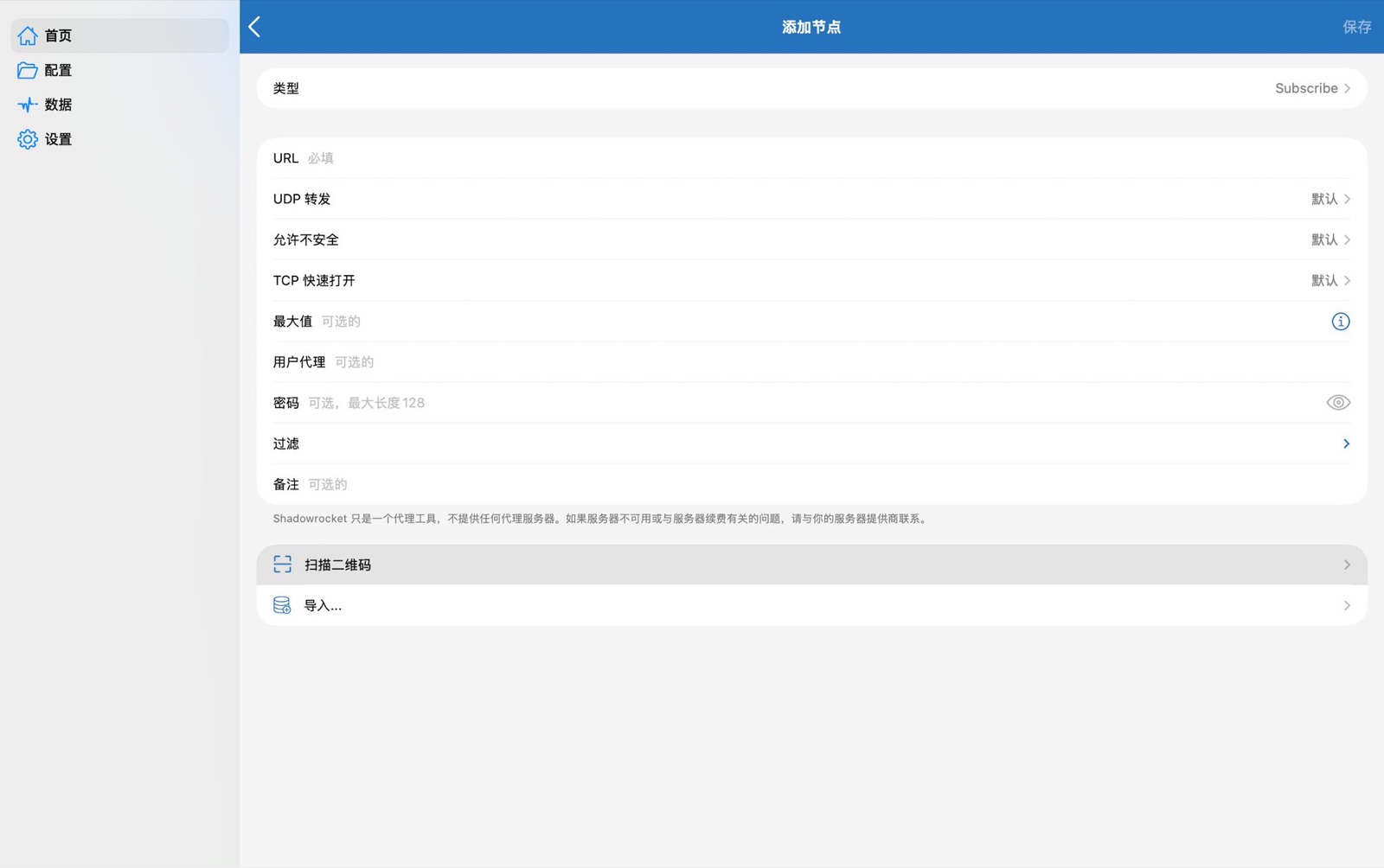
Step 1: import nodes. Tap the plus at the top right of the home screen, choose Subscribe as the type, paste your subscription link into URL, write any note, and save. If you have a QR code, tap the scan icon at the top left and scan it instead.
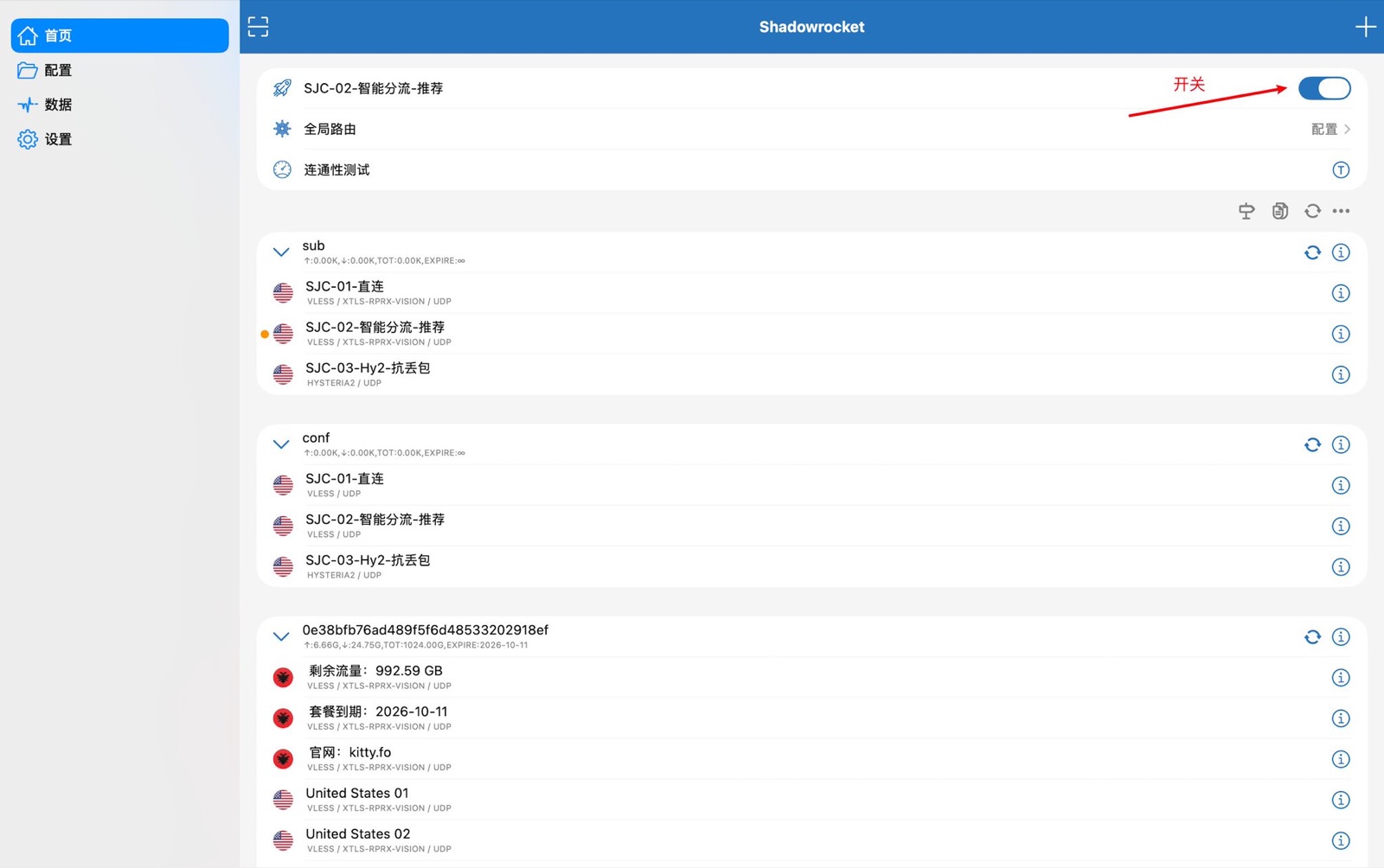
Step 2: connect. Tap a node in the list, then turn on the switch at the top of the home screen. The first time, it asks to add a VPN configuration; tap Allow, then enter your passcode or use Face ID. When the VPN icon appears in the status bar, you’re connected.
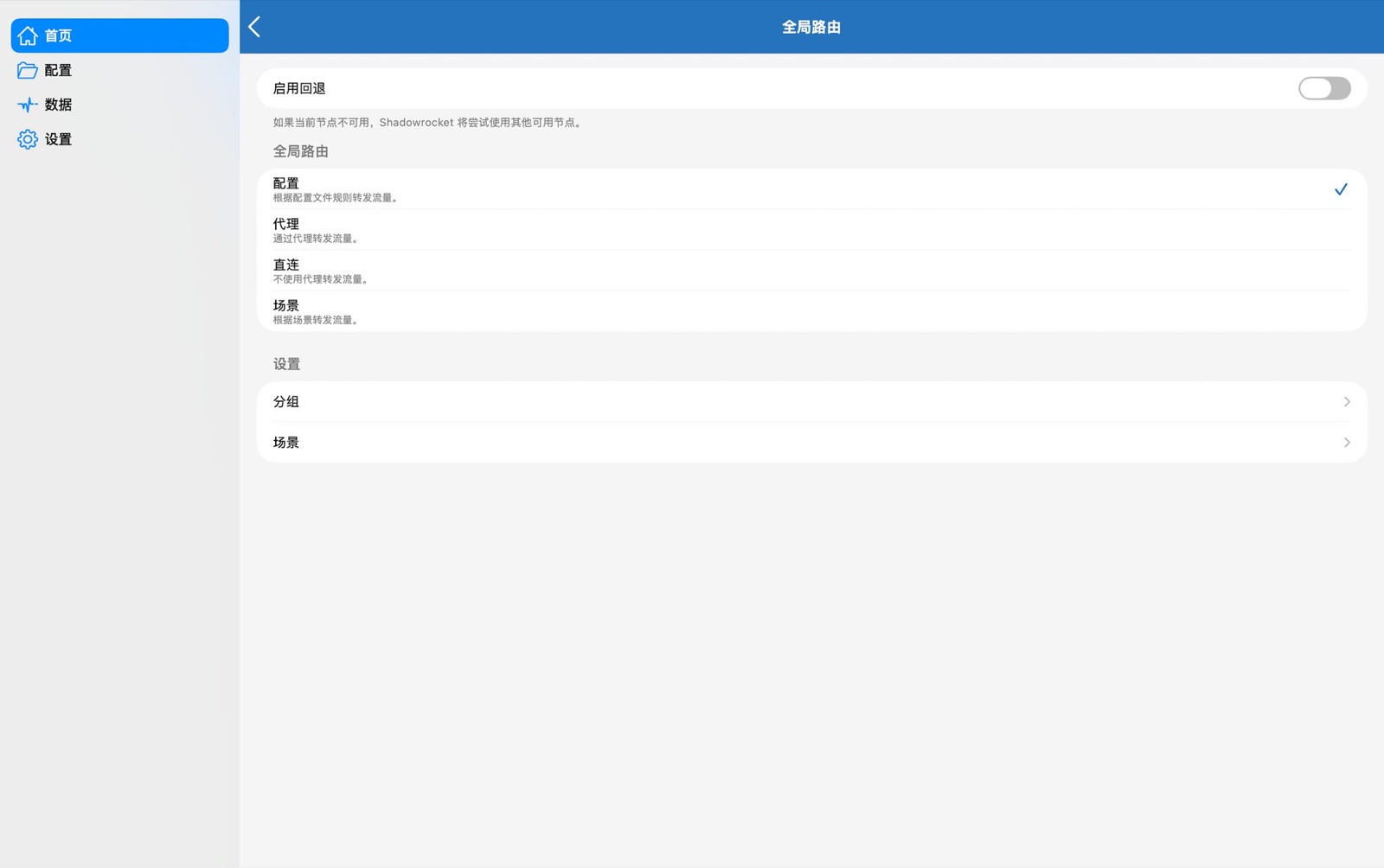
Step 3: set Global Routing to Config. On the home screen, Global Routing has four options: Config, Proxy, Direct and Scene. Day to day, choose Config: it splits traffic by rules, sending Chinese sites direct, which is faster and saves data. Proxy sends all traffic through the node; Direct sends none of it.
Step 4: test your nodes. Below the node list on the home screen there’s a connectivity test. Tap it to see each node’s latency and pick a low one.
Step 5: let the subscription update itself. In Settings, go to Subscribe and turn on Update on open, so you don’t have to refresh by hand when your provider changes nodes.
How about on the phone?
The interface on the phone is basically the same as on the Mac: importing a subscription, choosing a node and choosing routing all work the same way, and the first time you turn it on you also need to allow the VPN configuration. On the Mac, you can then switch global routing and nodes straight from the menu bar instead of opening the main window each time.
Can’t connect? Check these
First, use the connectivity test to see whether your nodes respond. If they all time out, the node has most likely expired or run out of data. Check with your provider or your own server; it usually has little to do with Shadowrocket itself.
If the nodes in your subscription are stale, update the subscription manually in Settings. An iPhone can only have one VPN configuration active at a time, so other proxy apps will conflict; turn one off and try again.
If it disconnects after the screen locks, users on older iOS versions have reported this in App Store reviews. Update both iOS and Shadowrocket to the latest versions and try again.
A few reminders
Only download Shadowrocket from the App Store. Stay away from the “free”, “shared” or cracked versions floating around. It’s only a client; what really decides whether it works and whether it’s safe is the node, and a free node from an unknown source can see your traffic.
Rules about tools like this vary by place, so understand them before you use it. Overseas accounts can also get flagged by risk controls.
My setup
My nodes are self-hosted, two sets, VLESS Reality and Hysteria2, and I run my own subscription service too, with AI-related traffic going out through a separate WARP exit. Both my iPhone and Mac import the same subscription link in Shadowrocket, so switching devices doesn’t need any reconfiguration.
Which proxy app are you using on your phone right now?